Melo guide: how online ordering works, step by step
This guide shows how Melo works for your restaurant, cafe or shop, from the first setup to the first printed receipt. Most stores are ready to take orders on the same day.
- Request your 14-day free trial
- Add your logo, colours and pictures
- Add your products
- Set delivery areas and charges
- Share your link and QR code
- Accept, print and deliver orders
- What your customer sees
- The order panel, tab by tab
- Mess: monthly meal plans
- Deals
- Melo Panel app for Android
- Your Melo bill
- Your data and backups
- Common questions
Watch the 40 second demo
Step 1: Request your 14-day free trial
Fill in the short form on the Melo home page with your business name and WhatsApp number. Our team contacts you on WhatsApp, creates your store and sends your login details for the store panel.
Step 2: Add your logo, colours and pictures
Open Settings in the panel (it opens with your 4 digit PIN), upload your logo and cover pictures, and choose your colours. Your website is at yourname.meloapp.store.
Step 3: Add your products
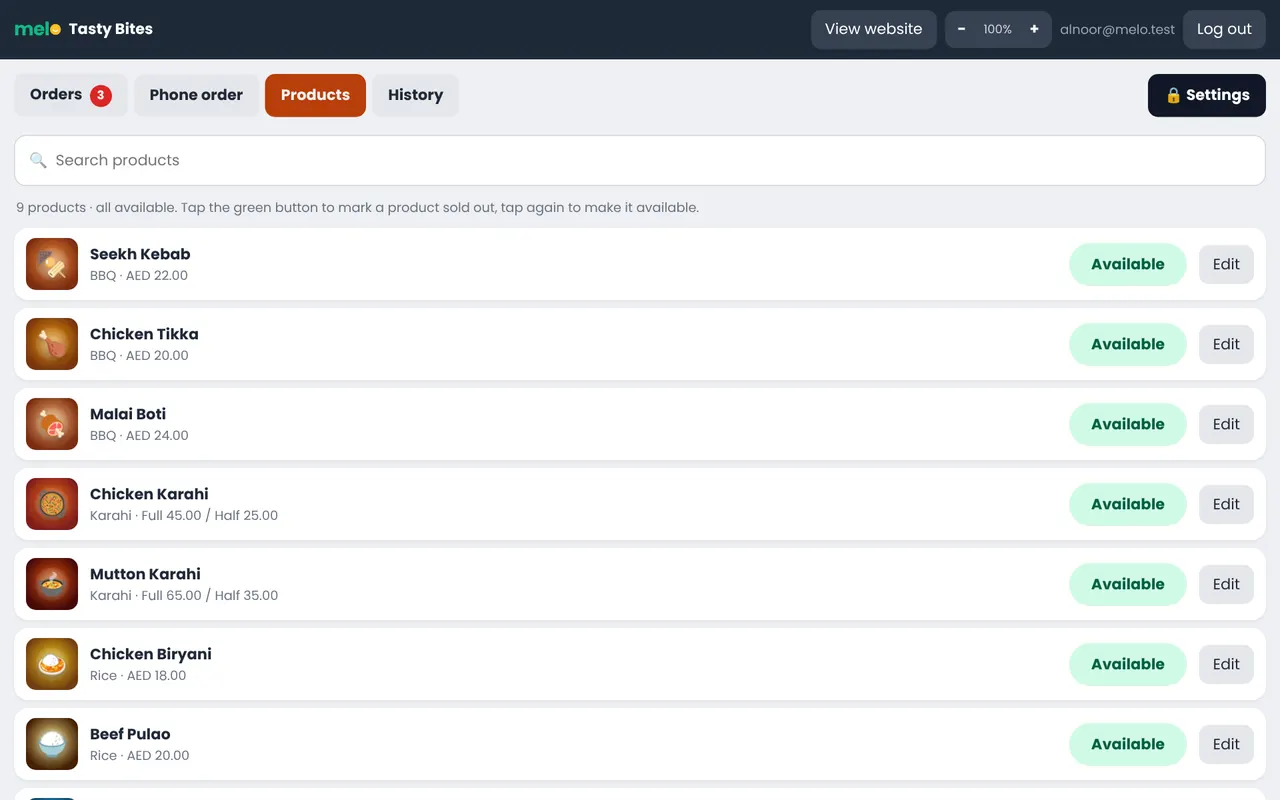
Open Products and add each dish or item with a photo, a price and a category. A product can have two prices such as Full and Half, and a list of choices such as drinks or flavours. You can also upload your whole menu from Excel.
Step 4: Set delivery areas and charges
In Settings, choose how delivery is charged: by area, by distance from your shop, or free above an amount. Add a minimum order for each area if you need one. Pickup orders can be turned on too.
Step 5: Share your link and QR code
Settings, QR code: choose one of five poster designs with your name, logo and colour, then print it or download the picture. Put it on your counter, tables, menu card and delivery bags. Share your link on WhatsApp, Instagram and Google Maps so your regular customers order from you directly.
Step 6: Accept, print and deliver orders
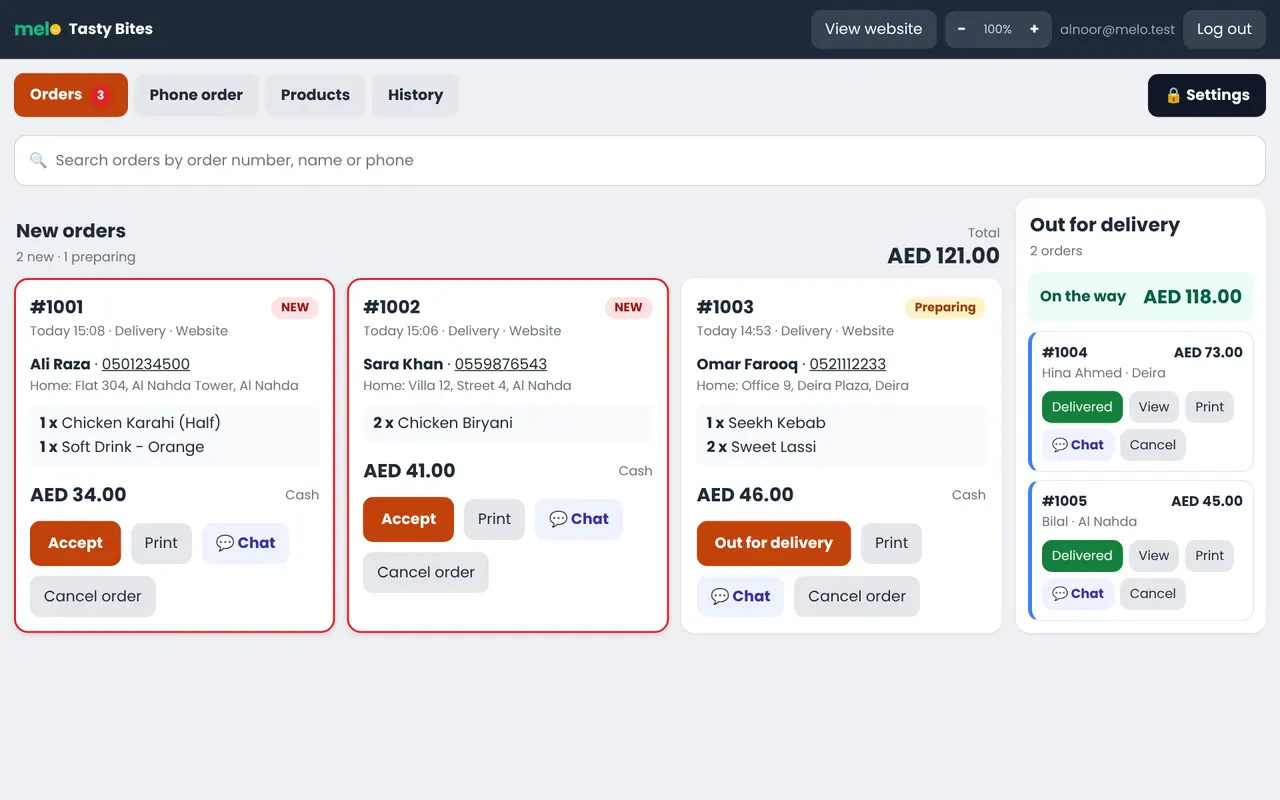
New orders arrive in the Orders board with a sound. Press Accept, the receipt prints, and move the order to Out for delivery and then Delivered. The customer sees each step on their phone and can chat with you about the order.
What your customer sees
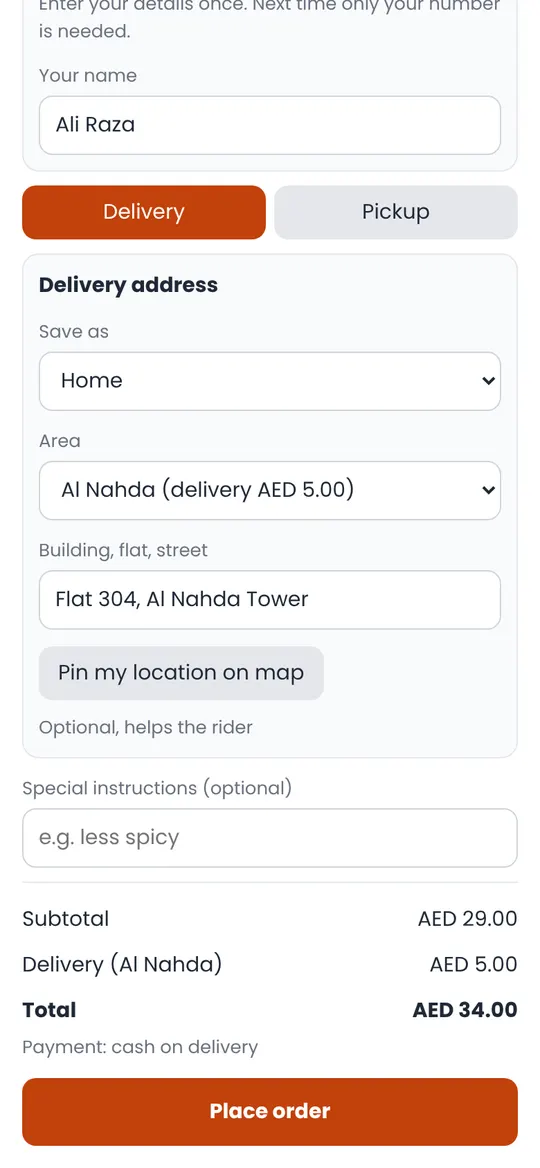
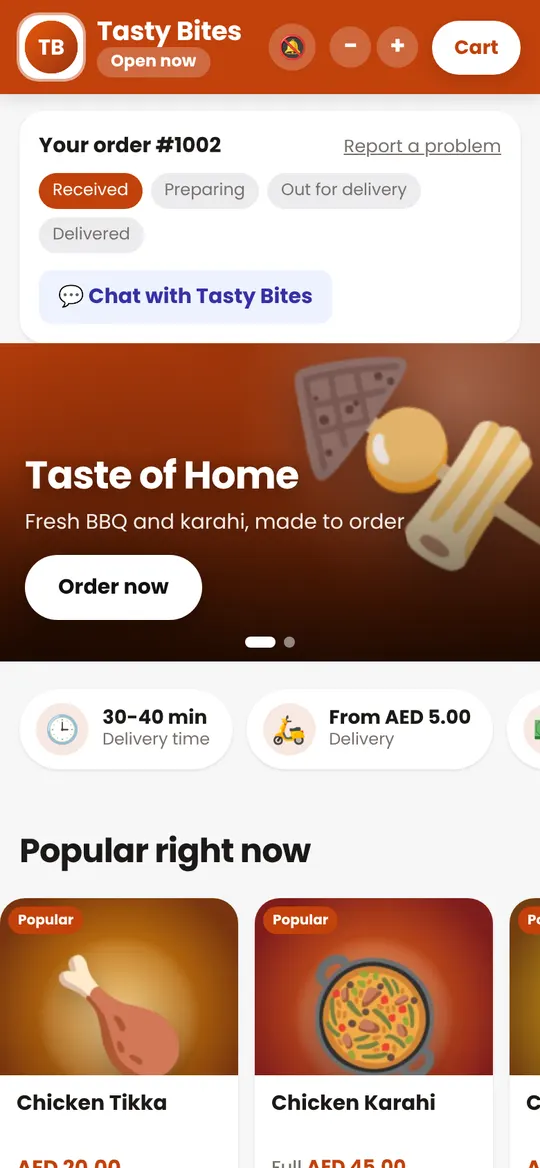
Your customer opens your link or scans your QR code. Nothing needs to be downloaded, and the website works on every phone.
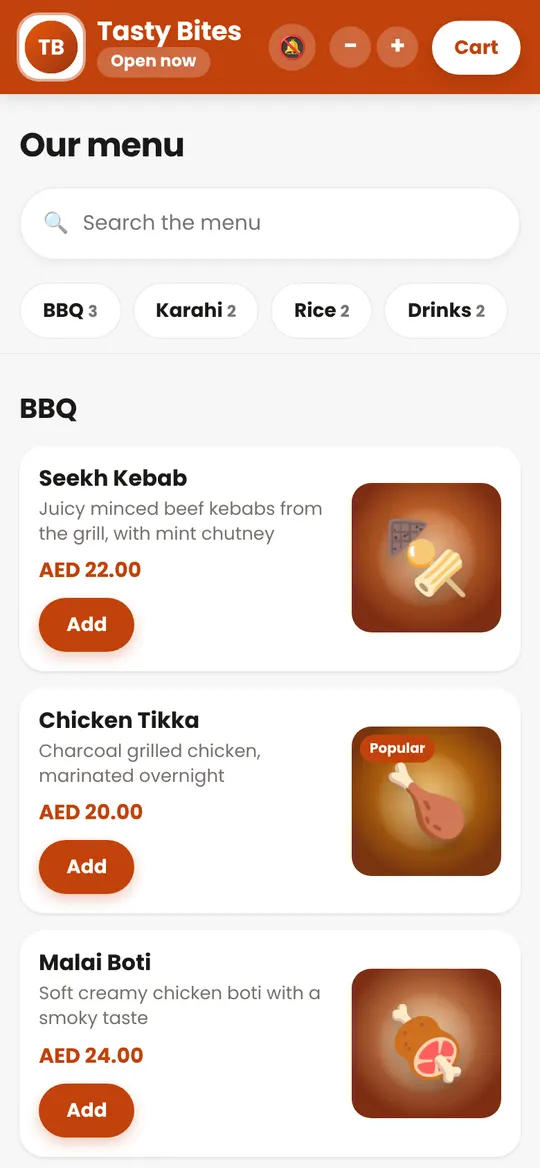
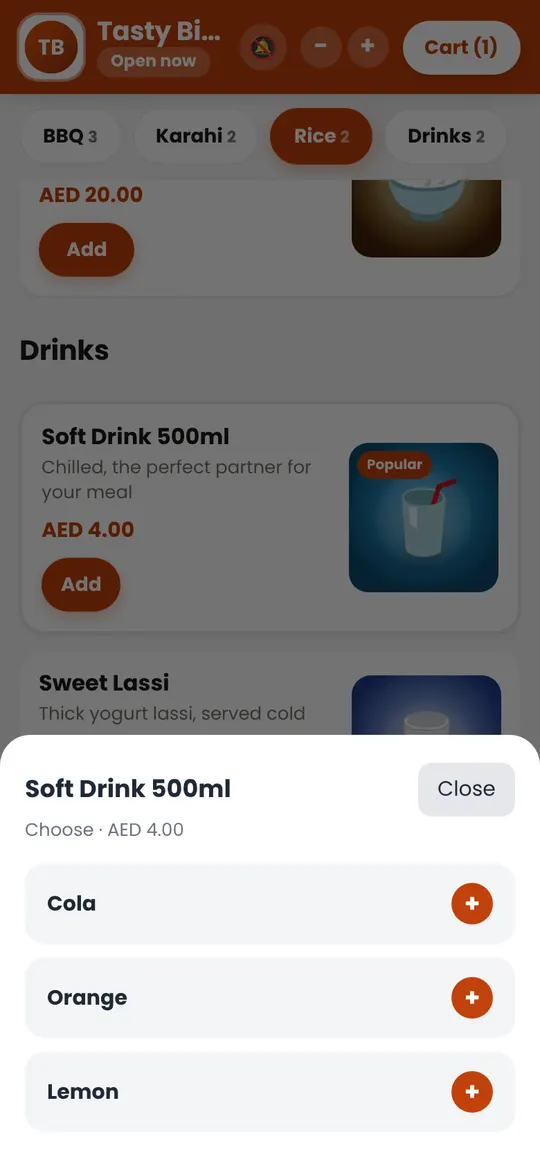
- Menu in four languages: English, Arabic, Urdu and Hindi.
- Saved details: name and address are saved, so the next order takes a few seconds.
- Order status and notifications: accepted, on the way and delivered, on the phone's lock screen.
- Install as an app: from the Download app link in the footer, with your store logo.
- Chat about the order: text, pictures and voice messages while the order is in hand.
The order panel, tab by tab
On a computer or tablet every part of the panel is in a menu on the left, with clear icons. On a phone the menu is at the bottom, like an app.
- Home: today at a glance: orders, sales, orders waiting and your Melo balance, quick buttons and the latest orders.
- Orders: new orders on the left, orders on the way on the right, with the total for each. Search by order number, name or phone.
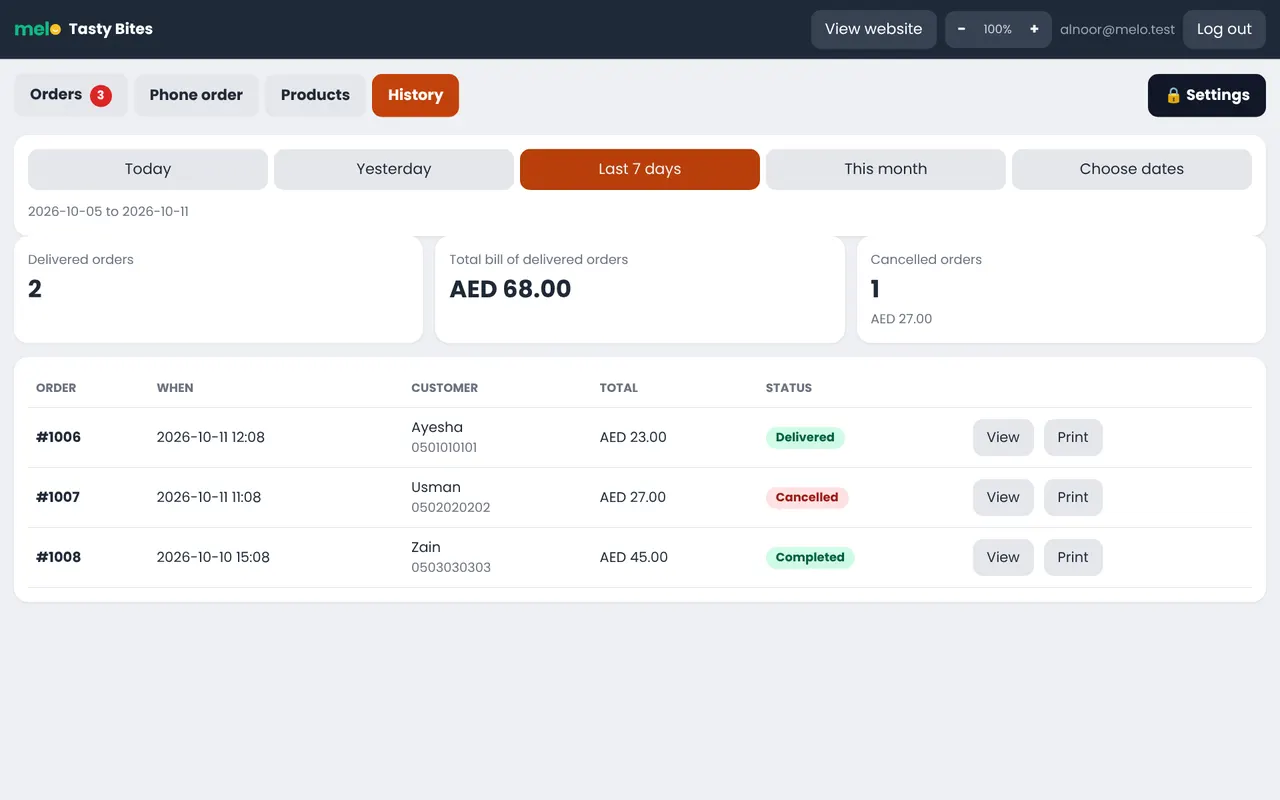
- History: delivered and cancelled orders with a sales report for any period.
- Products: every product with a switch for Available or Sold out, and quick editing.
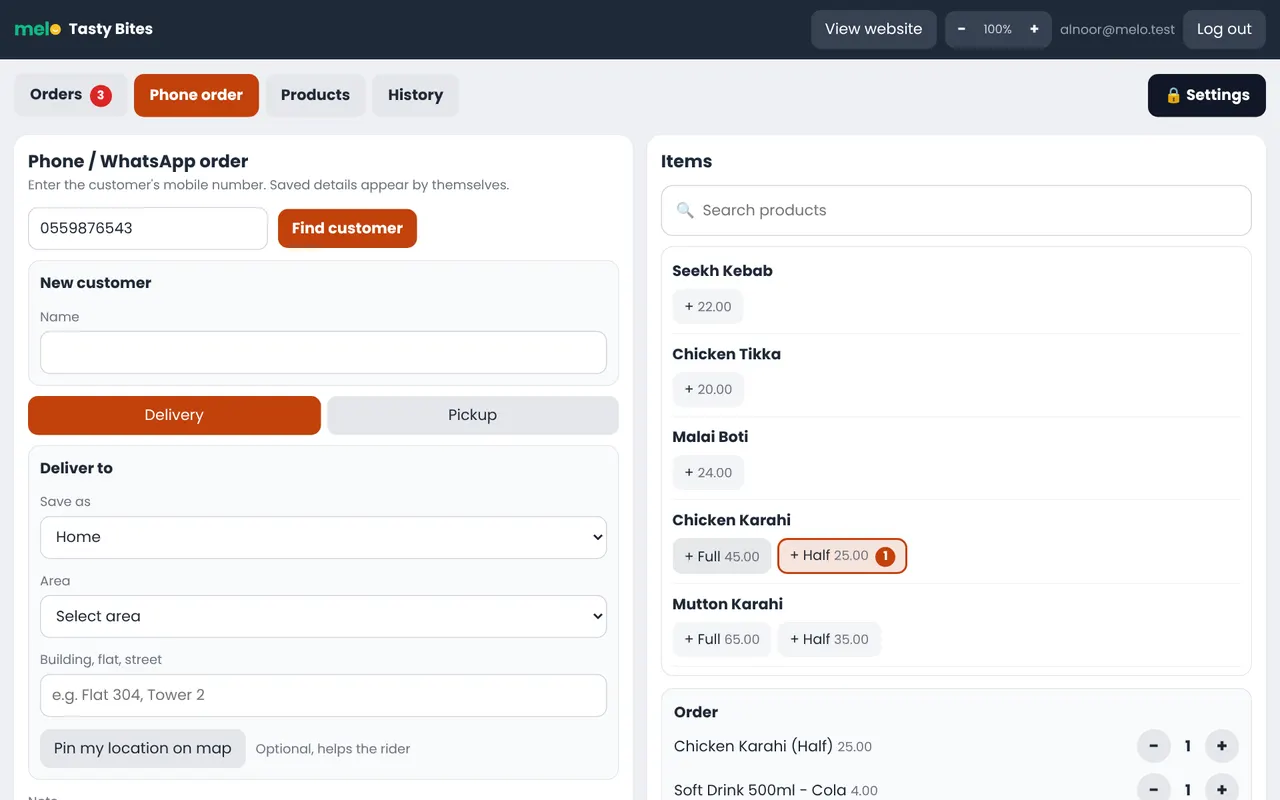
- Phone order: enter phone and WhatsApp orders with a product search.
- Settings (PIN): website look, delivery, printing, sounds, staff and more.
Mess: monthly meal plans (add-on)
If you run a mess or tiffin service, the Mess add-on keeps every meal, payment and skipped day for you. It is free on the 6 months and yearly plans. Read more about Mess.
- Turn it on: Settings, Mess. Choose what happens when a customer skips a day: one more day at the end, or the day is used up.
- Make plans: Mess, Plans. For example "Lunch only", "Lunch + Dinner" or "Full day" with breakfast, the days of the week, the number of plan days and the price.
- Write the menu: Mess, Menu. One week at a time with the dates. "Copy last week" saves time.
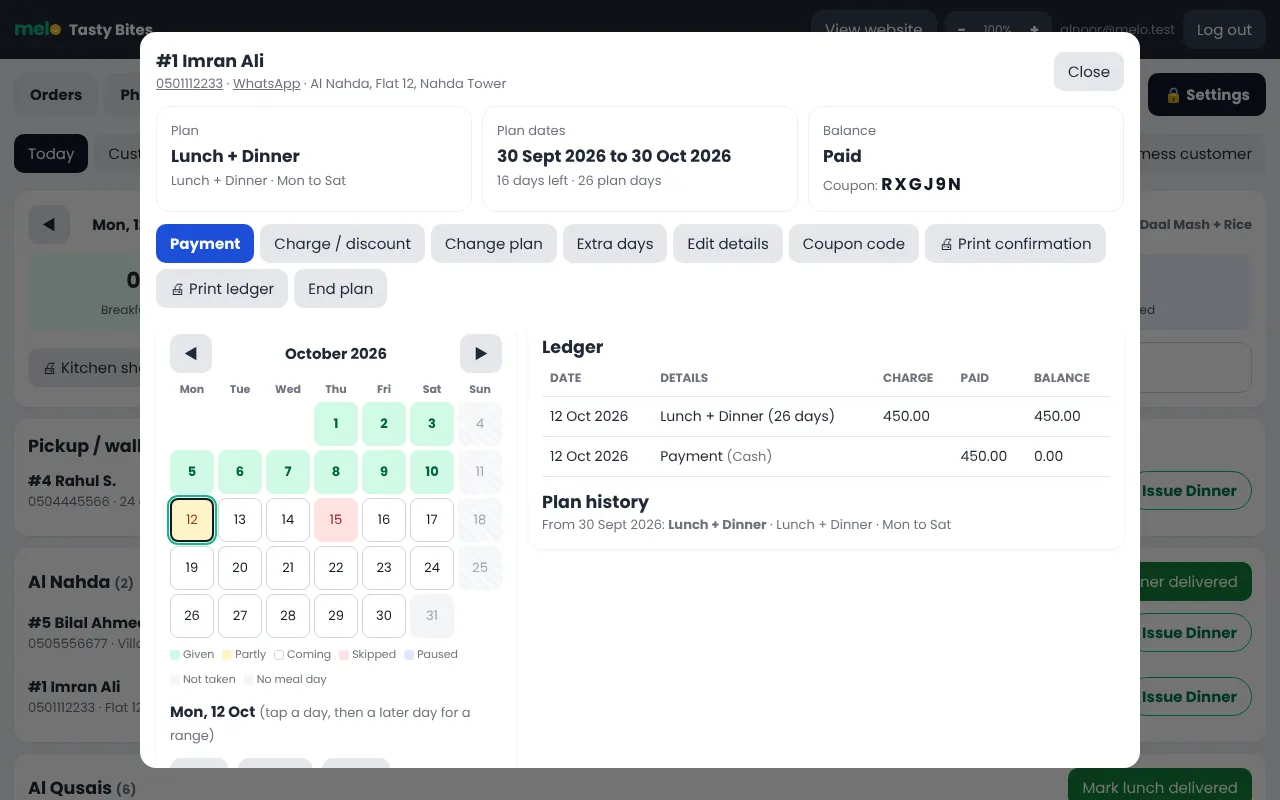
- Add customers: "+ New mess customer". Record the payment and print the confirmation with the plan dates, the coupon code and your terms.
- Meal times: Settings, Mess. Set the time of breakfast, lunch and dinner. Meals are given and ordered only in these times. A meal that is not taken is marked missed; for 24 hours after the meal time it can still be changed, after that it is closed.
- Staff and PIN: staff see only Today. Customers, plans, menu, payments, the ledger and printing open with the settings PIN.
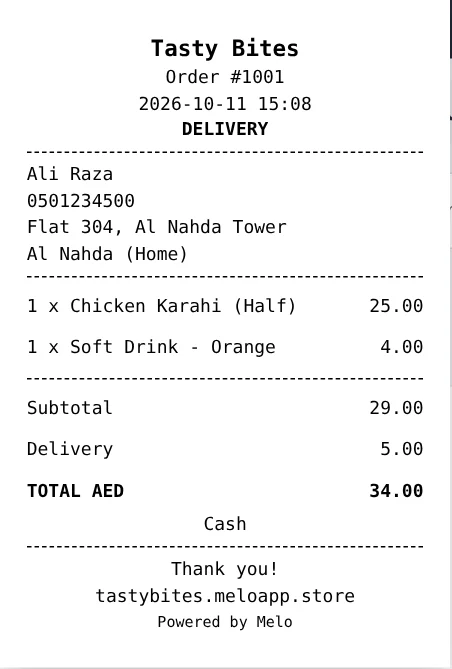
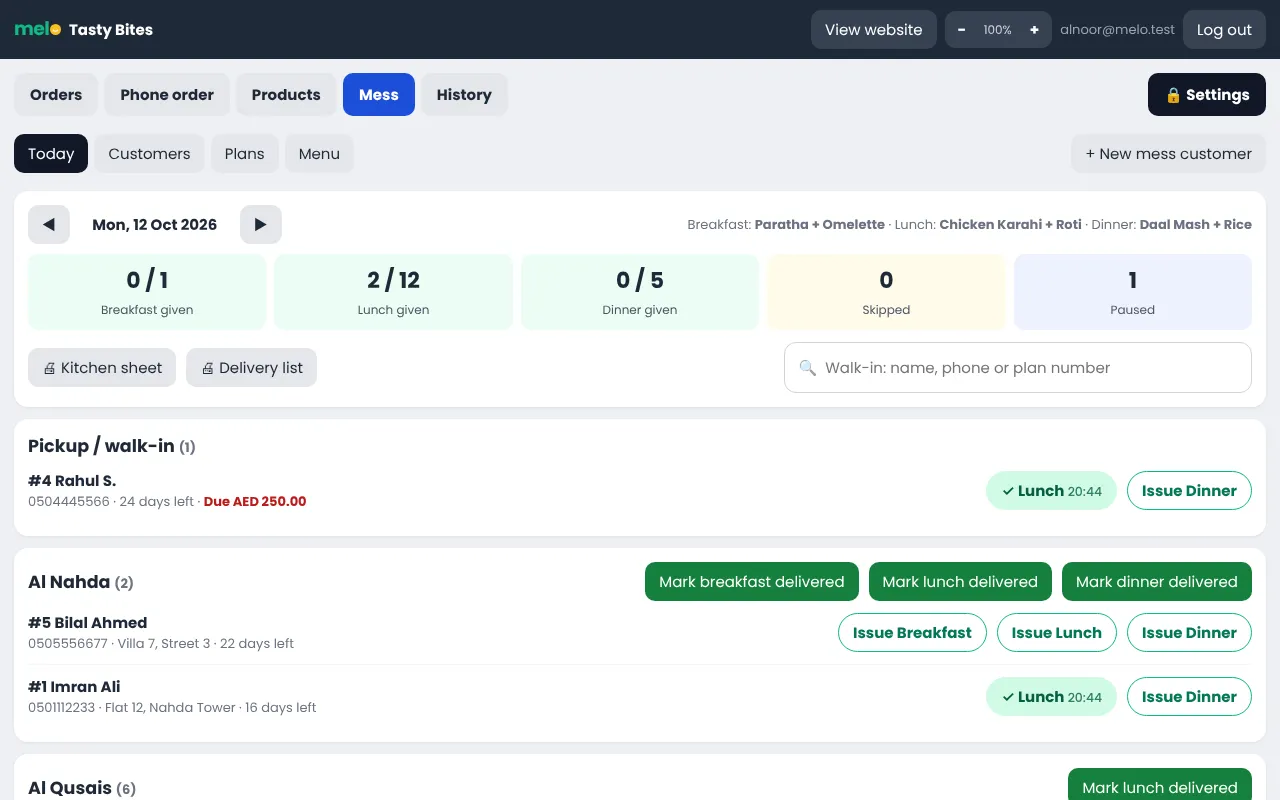
- Every day: Mess, Today shows who gets which meal, by area. Print the kitchen sheet and the delivery list. When a customer walks in, search the name and press Issue: the receipt prints.
- Customers online: with their mobile number and coupon code they see their plan, order today's meal and skip a day before your cut-off time.
Deals (add-on)
Deals is free on the quarterly, 6 months and yearly plans, and an add-on on the monthly plan.
Show special offers at the top of your website. Settings, Deals.
- Deal with a picture: upload your ready deal picture, write what is in it and the price.
- Deal from products: pick products from your menu and the quantity. Melo shows the normal price, you set the deal price.
- End time: add an end time and the website shows a count-down. The deal stops by itself. You can also turn a deal off or end it now.
- Orders: the order shows the deal, everything in it and the customer's note, on the screen and on the receipt.
Melo Panel app for Android
For the tablet or phone at your counter. Download it from your panel: Settings, Printing, Download the app.
- Never miss an order: new orders ring with a loud alert and show over the lock screen, even when the app is closed.
- One tap printing: choose your Bluetooth, USB (cable) or WiFi receipt printer once in Settings, Printing and app. Receipts print straight away, in every language.
- Pop-up alerts: new orders and customer messages pop up on top of the screen, grouped by type, like on an iPhone.
- Easy updates: when a new version comes out, the app shows an Update button. Changes to the panel itself arrive by themselves.
- Works on phones and tablets, in portrait and landscape.
- Tip: keep the device on the charger and turn off the battery saver for Melo. The app shows what to check.
Your Melo bill
In your panel open Settings, Melo bill. You see your plan, every bill and payment, and your balance.
- Pay and send: pay by cash, card or online transfer, then send the amount with the reference number or a picture of the receipt.
- Checked by Melo: the payment shows as "Waiting for check" until Melo verifies it, then it is in your ledger.
- Credit: if you pay more than the bill, the extra stays as green credit and is used for your next bills. A bill is settled only when all of it is paid.
Your data and backups
Melo makes a backup of your store every night: menu, settings, deals, customers, orders and mess. Backups are kept for up to 3 months, and a second full backup of the whole system is kept separately.
- Deleted something by mistake? Contact us on WhatsApp with the date. We can bring back the whole store, only one part (for example only the menu or only the settings), or a single product.
- Nothing is lost by a restore: before every restore a copy of how your store is at that moment is saved, so it can be undone.
- New orders are kept: when missing orders or customers are brought back, the ones that came after the backup stay.
Common questions
Which printer do I need?
Any 80 mm or 58 mm thermal receipt printer that works with your computer. Choose the paper size under Settings, Printing. For printing in one click, use the desktop shortcut from the same page.
Can my staff use the panel without changing settings?
Yes. Staff see orders and products. Settings open only with the 4 digit PIN. If you forget the PIN, you can reset it with your login password.
How do I mark a dish as sold out?
Open Products and switch the dish to Sold out. Customers can still see it but cannot order it. Switch it back when it is available again.
How do I take an order on the phone?
Open Phone order, search the products, enter the customer phone number and address, and save. The order goes to the same board and prints the same way.
Where do I see my sales?
Open History. Choose today, this week, this month or any dates to see delivered orders and total sales.
Need help?
Message us on WhatsApp +971 50 160 3324 or email support@meloapp.store. We help you set up your store for free.